 Snapkit
 Snapkit documentation
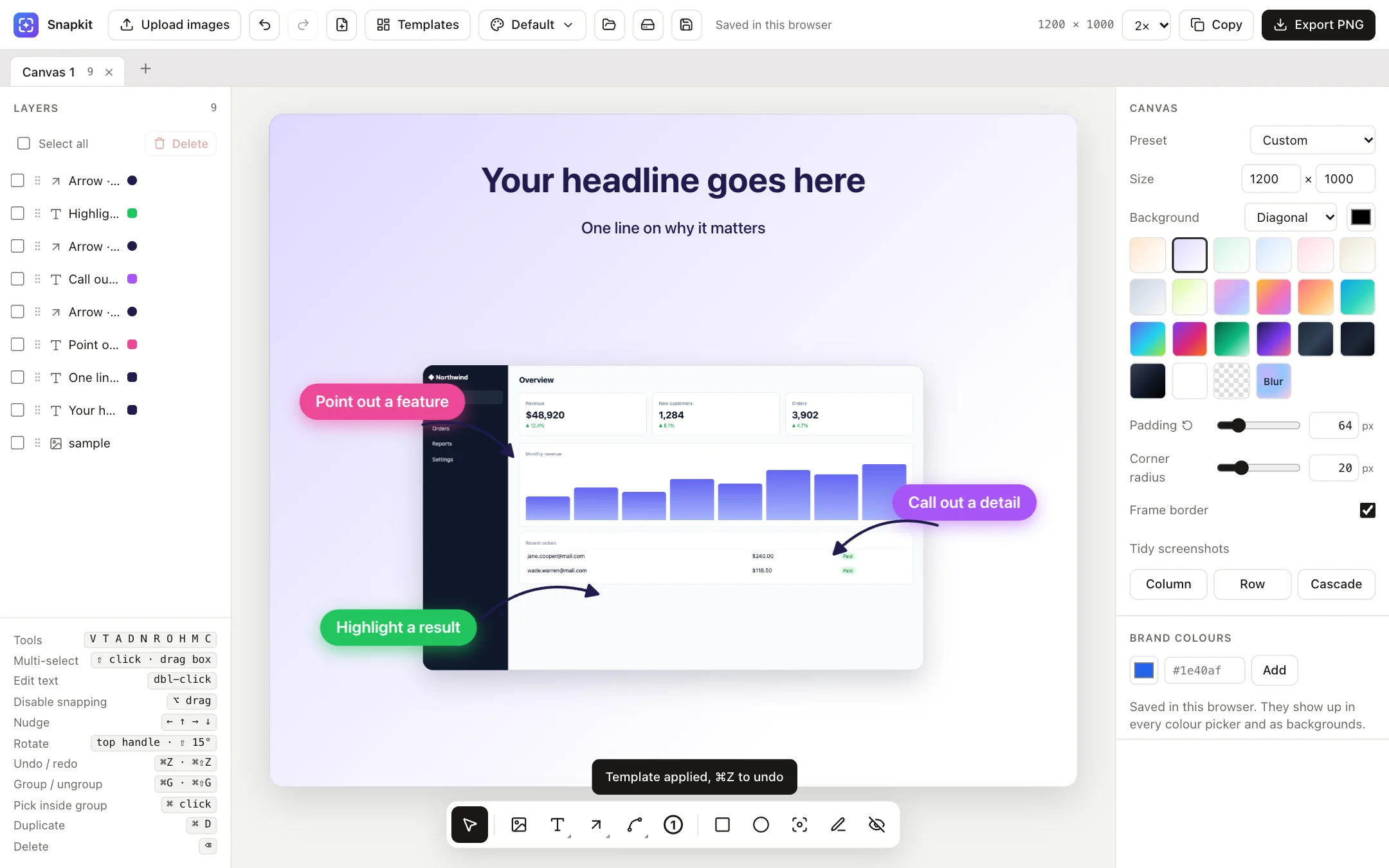
Snapkit turns raw screenshots into polished visuals for social posts, docs, changelogs and launches. Add a background and frame, point things out with arrows and callouts, blur anything private, then export a sharp PNG.
Getting started
There's nothing to install and no account. Open Snapkit and add a screenshot in any of these ways:
- Drag and drop one or more PNG or JPG files onto the canvas.
- Paste from the clipboard with ⌘V (Ctrl V on Windows) right after taking a screenshot.
- Click Upload images in the top bar, or the image button in the bottom toolbar.
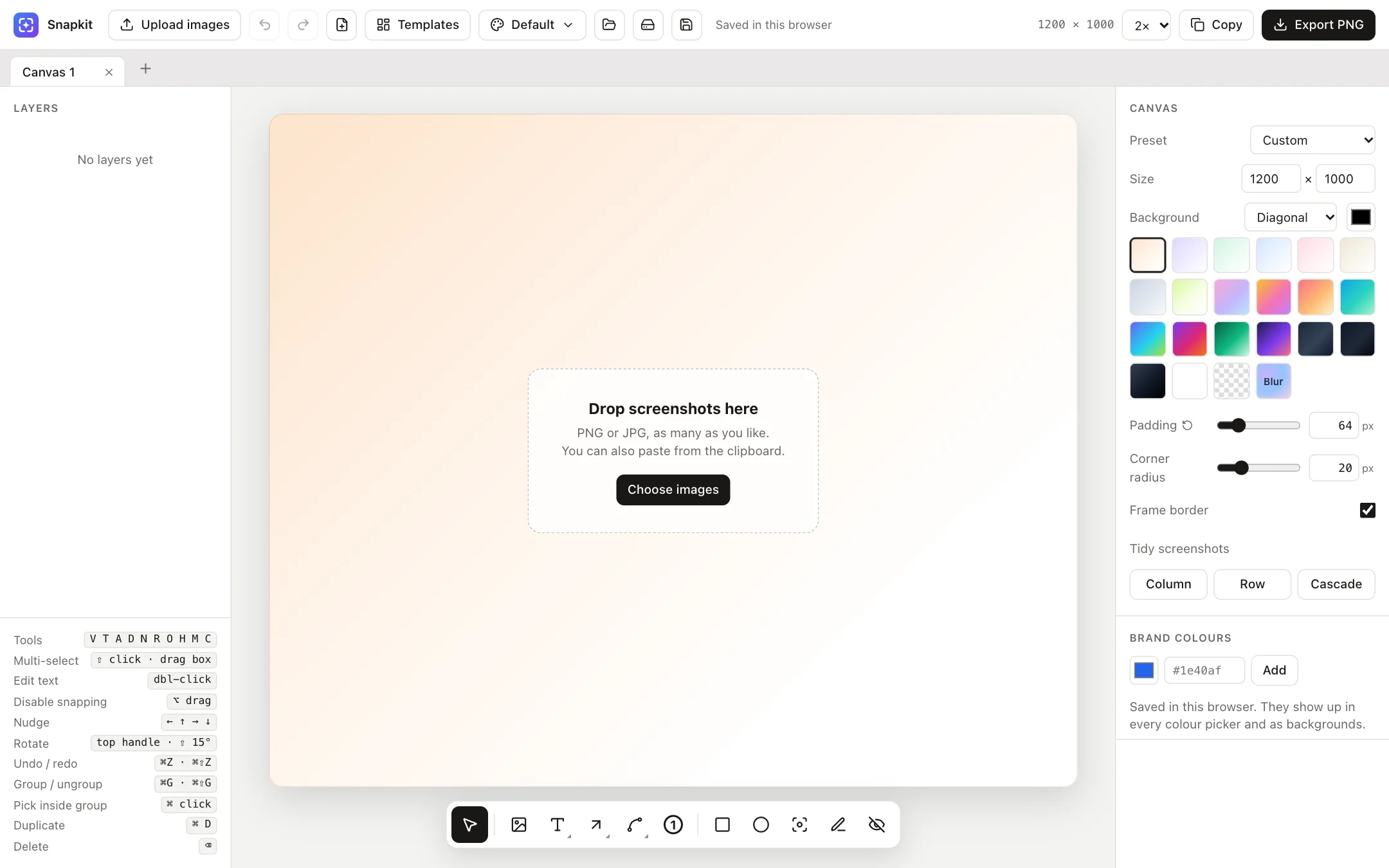
Snapkit fits the screenshot to the canvas, adds rounded corners and a soft shadow, and puts it on a gradient background. That alone is often ready to share.
The workspace
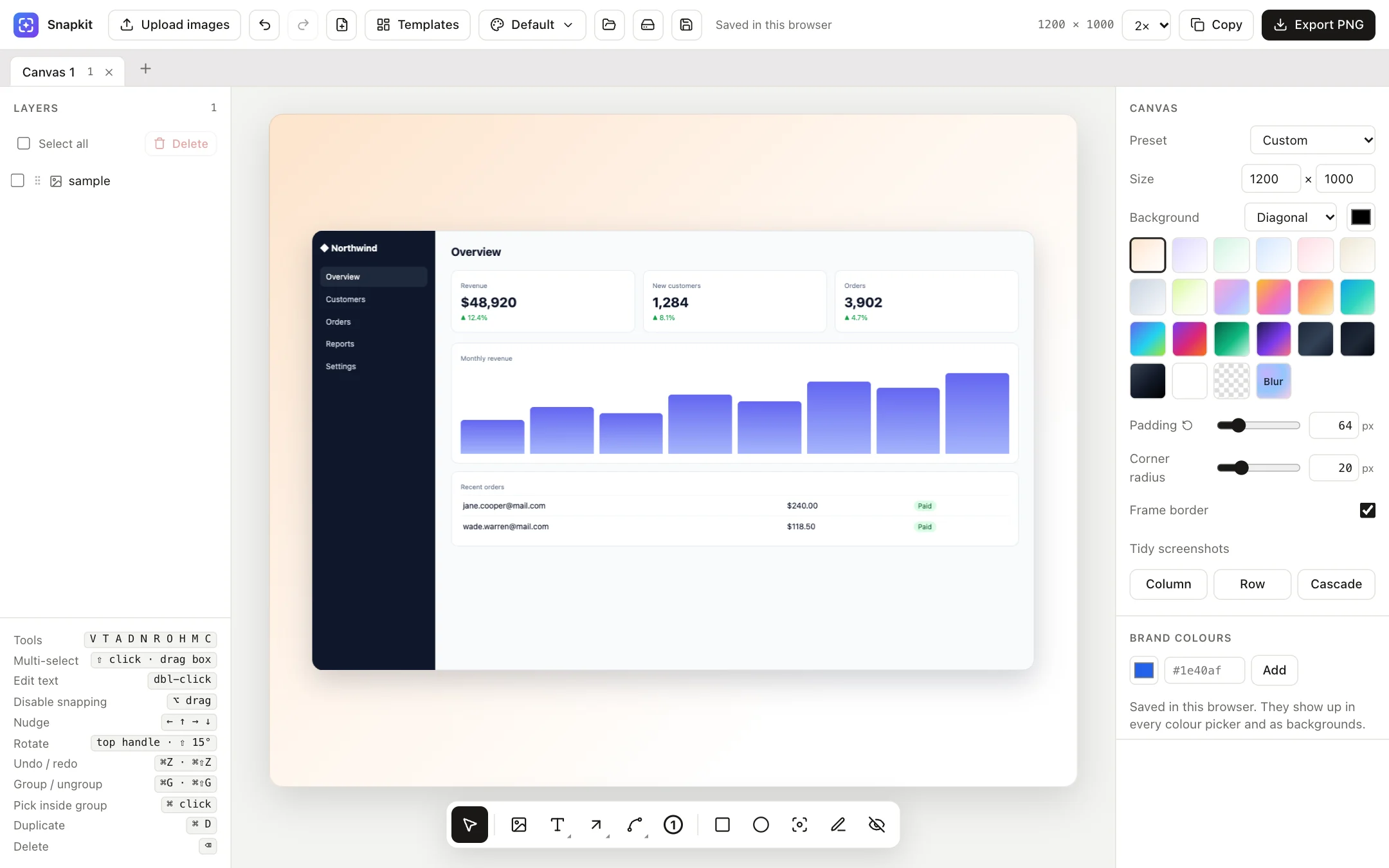
- Top bar: upload, undo/redo, new canvas, templates, brand presets, open/save project files, browser storage, export scale, Copy and Export PNG. The canvas size is shown next to the export controls.
- Canvas tabs: keep several canvases open at once, each with its own history.
- Layers panel (left): every element on the canvas, plus a cheat sheet of shortcuts.
- Canvas (centre): click to select, drag to move, use the handles to resize and rotate.
- Bottom toolbar: the drawing tools: select, image, text, arrow, doodle arrow, number badge, rectangle, circle, highlight, marker and censor.
- Properties panel (right): settings for whatever is selected, then the canvas settings and brand colours.
Templates
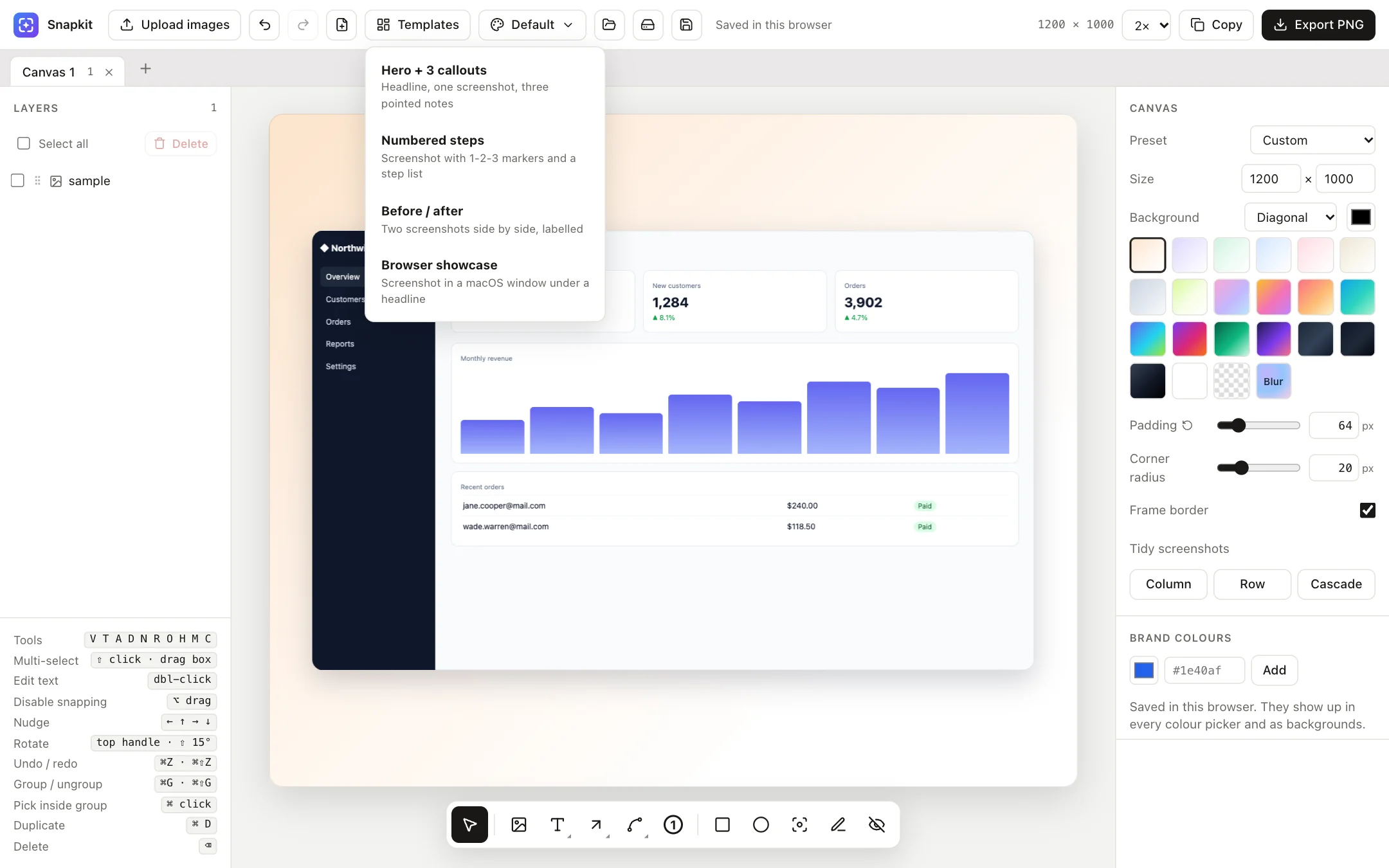
Templates arrange the screenshots you've already added into a finished layout with placeholder text you can edit. Add a screenshot first, then open Templates:
| Template | What you get |
|---|---|
| Hero + 3 callouts | Headline, subheading, one screenshot and three coloured notes with arrows pointing into it. |
| Numbered steps | A screenshot with 1-2-3 badges on it and a matching step list beside it. |
| Before / after | Two screenshots side by side with labels. Uses your second screenshot if there is one. |
| Browser showcase | The screenshot in a macOS browser window under a headline. |
Canvas settings
With nothing selected, the right panel shows the canvas settings. They're always further down the panel too.
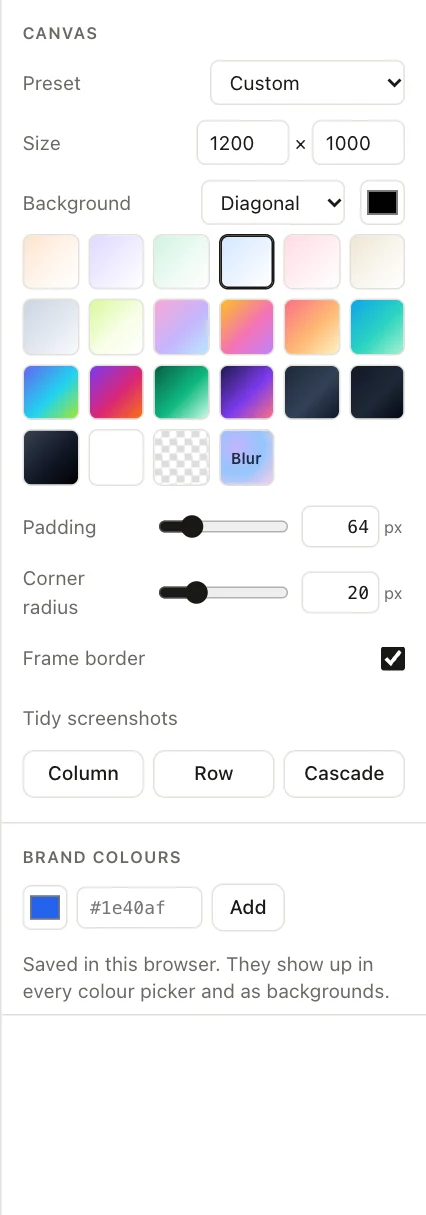
- Preset: ready-made sizes for Twitter / X (1600×900), Instagram square, portrait and story, LinkedIn, Facebook / Open Graph, YouTube thumbnail, Dribbble, Product Hunt gallery, blog hero and HD 16:9. Choose Custom to type your own size.
- Background: 20 gradient and solid swatches, a transparent option, a custom colour, and a direction (diagonal, vertical, horizontal, radial or solid). Your brand colours also appear here.
- Blur: uses a blurred copy of your screenshot as the background. Blur strength sets how soft it is. You can also pick which screenshot to use with Blur behind canvas on any image.
- Padding: the space between your content and the canvas edge. Changing it re-fits everything on the canvas.
- Corner radius and Frame border style the outer edge of the exported image.
- Tidy screenshots: lines up all your screenshots in a Column, a Row or an overlapping Cascade, centred on the canvas.
The small reset arrow next to a slider puts it back to its default.
Screenshots
Select a screenshot to style it:
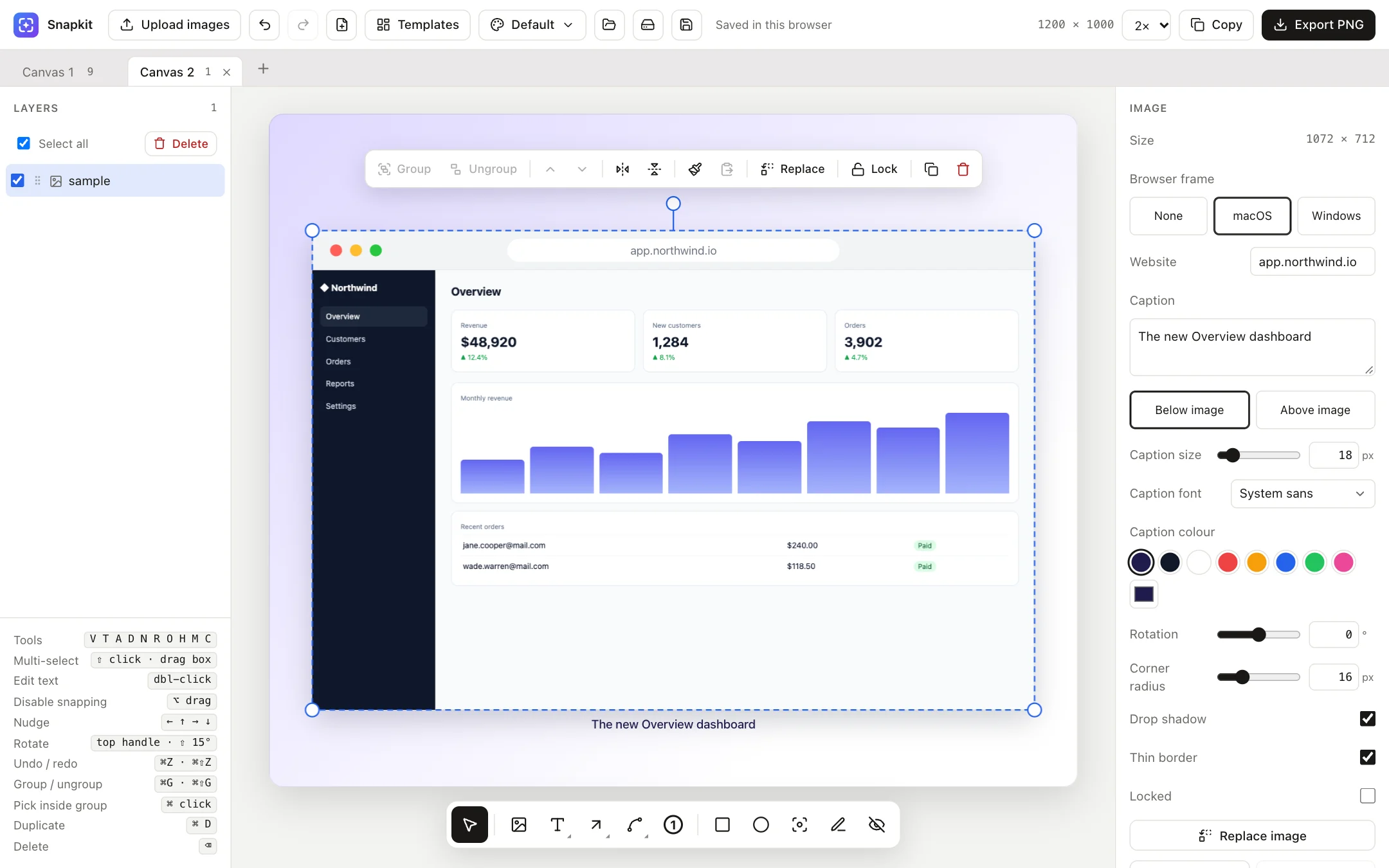
- Browser frame: none, macOS or Windows. Add an optional Website address to show in the address bar.
- Caption: text above or below the image, with its own size, font and colour.
- Rotation, Corner radius, Drop shadow and Thin border.
- Replace image: swaps in a new file and keeps every setting and position. This is handy for updating a visual after a UI change.
- Fit to canvas and Center to snap it back into place.
- Blur behind canvas makes this screenshot the blurred background.
Cropping
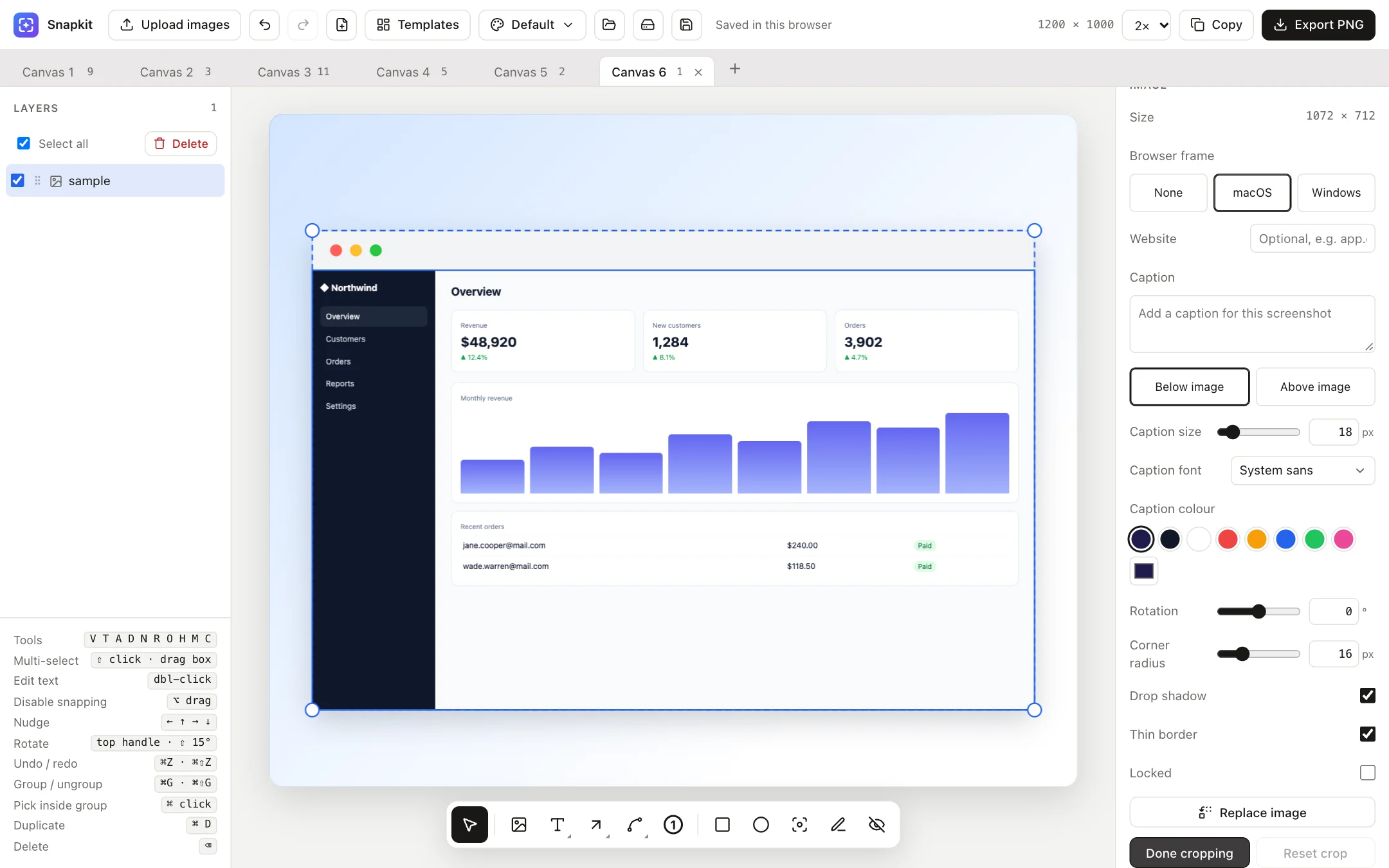
Click Crop, drag the corner handles to trim, then press Enter or click Done cropping. Cropping doesn't destroy anything: Reset crop brings back the full image.
Text & callouts
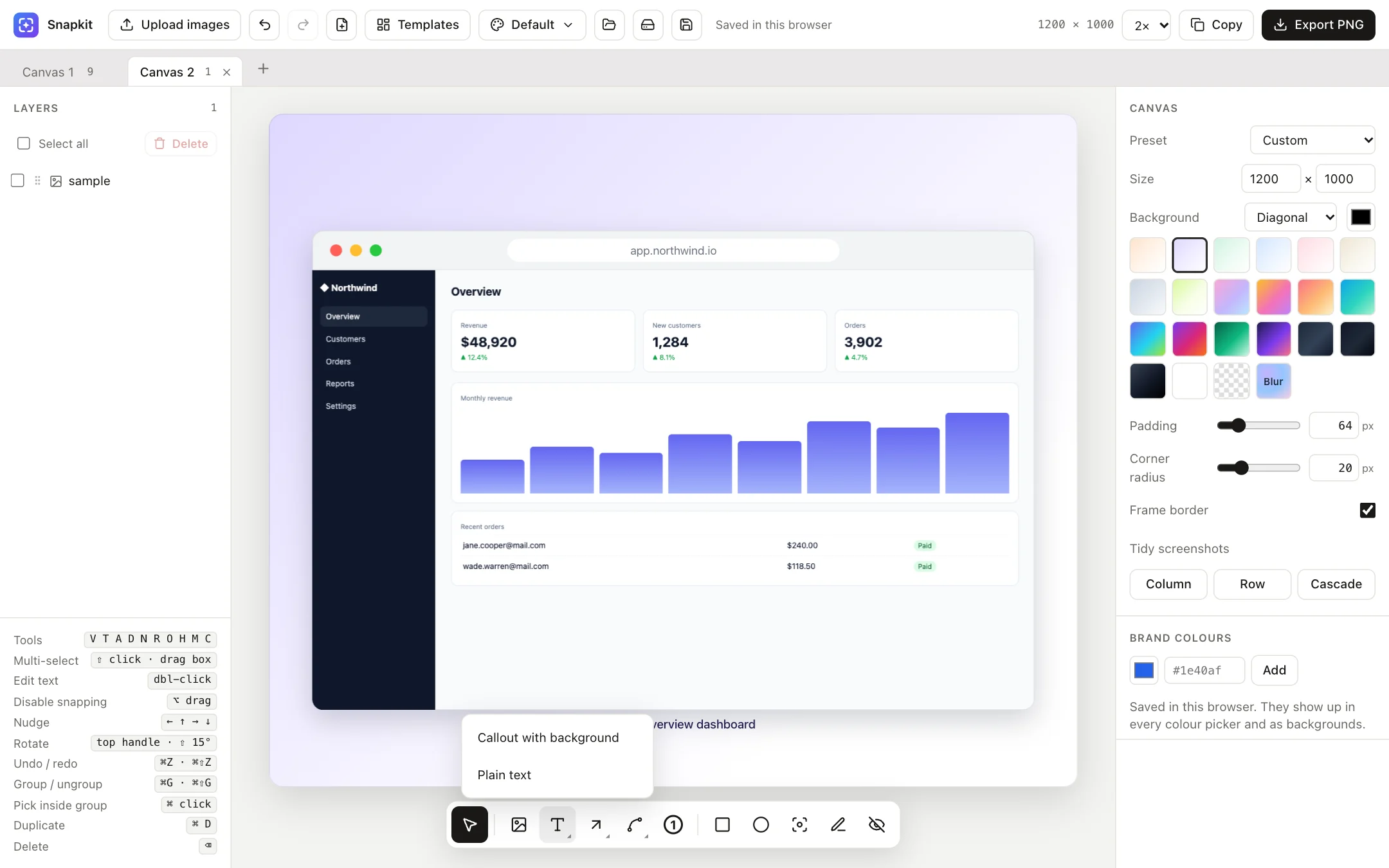
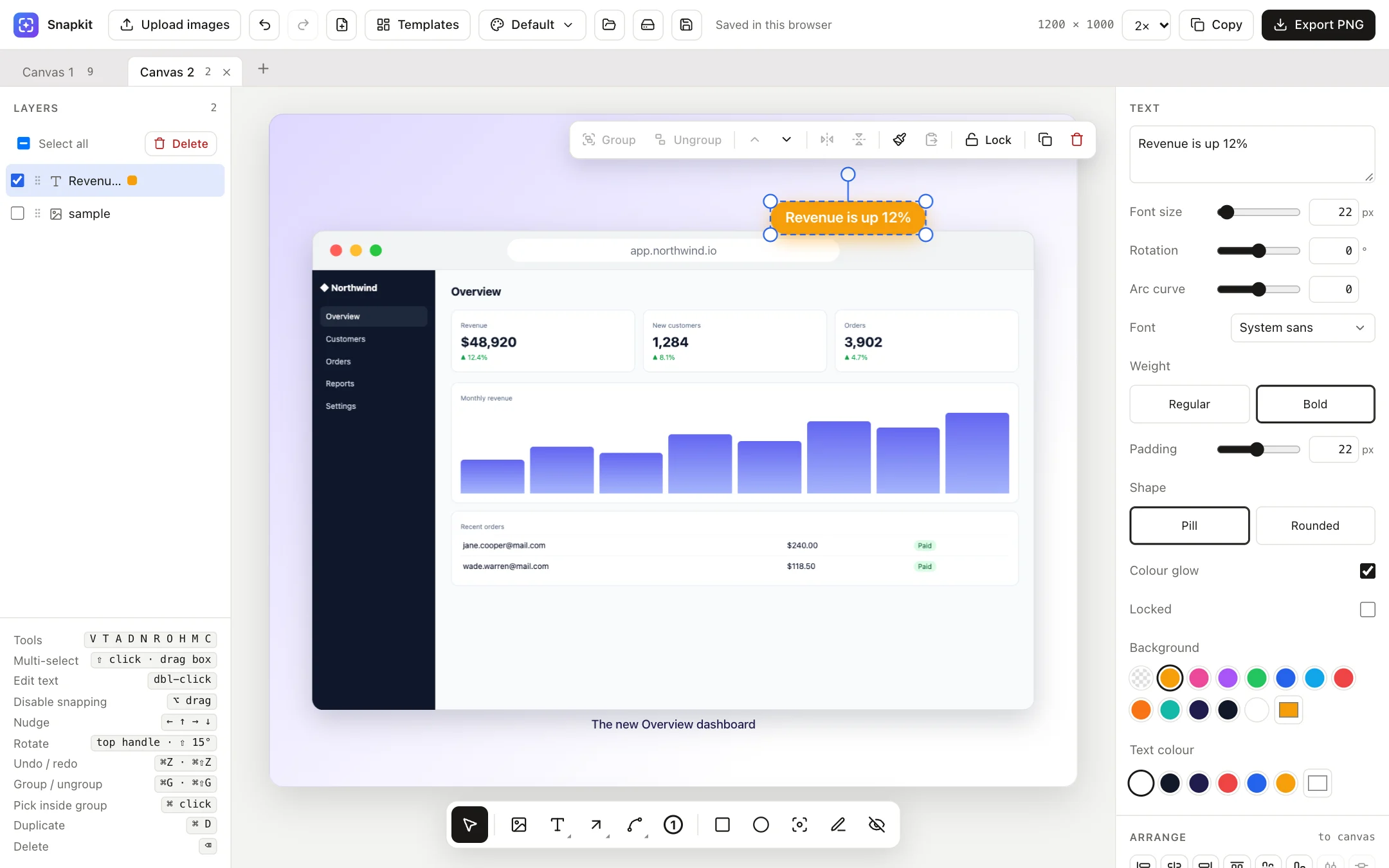
Press T or open the text button in the toolbar and choose:
- Callout with background: a coloured pill or rounded label, with an optional colour glow.
- Plain text: headlines and descriptions with no background.
Type straight away, then press Esc or click outside. Double-click any text to edit it again. In the panel you can change font size, rotation, Arc curve (bends the text along an arc), font, weight, padding, shape, background colour and text colour.
Arrows
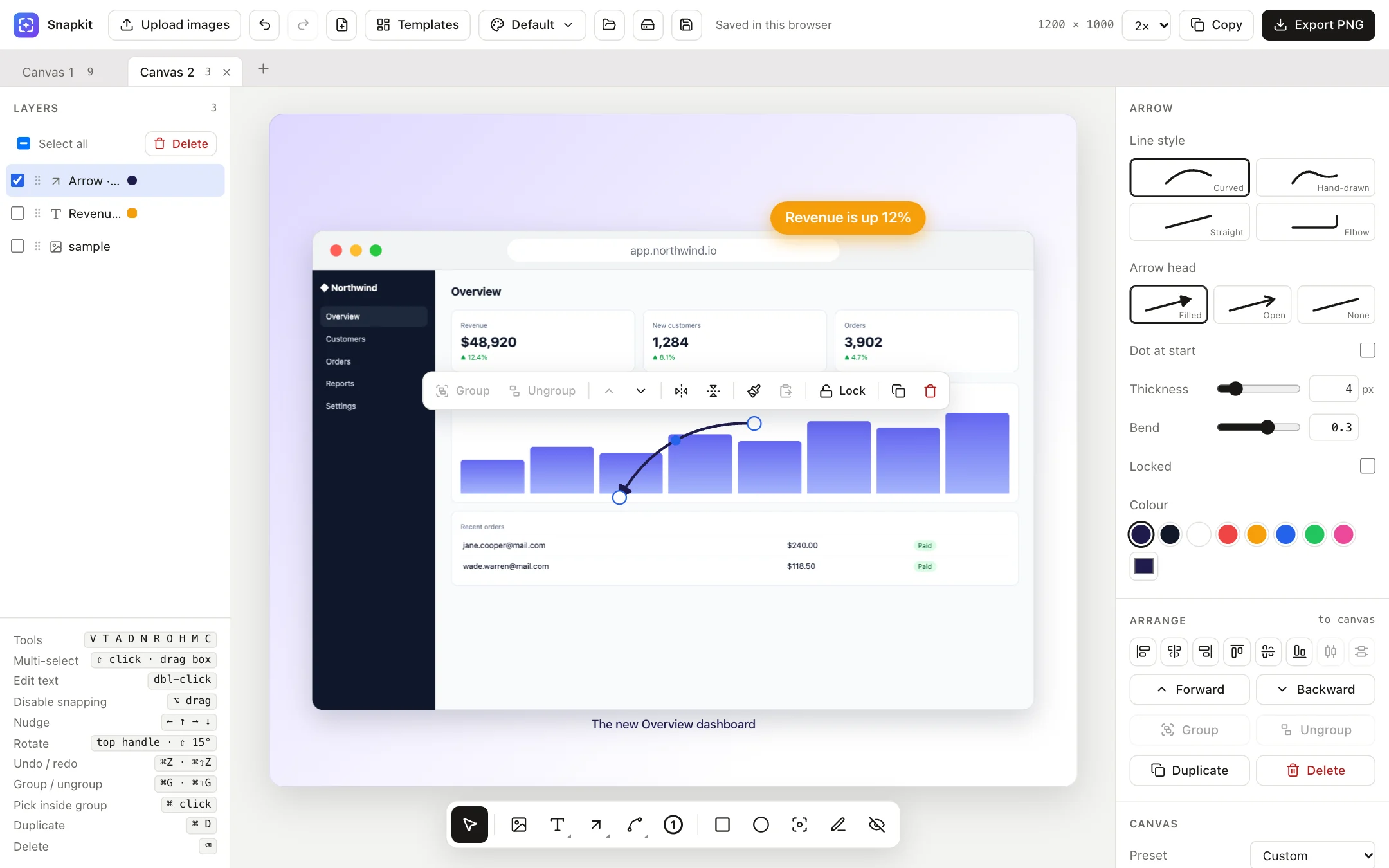
Press A or open the arrow menu and pick a line style. The arrow is placed on the canvas. Drag its end points to aim it, and drag the middle dot to change the bend.
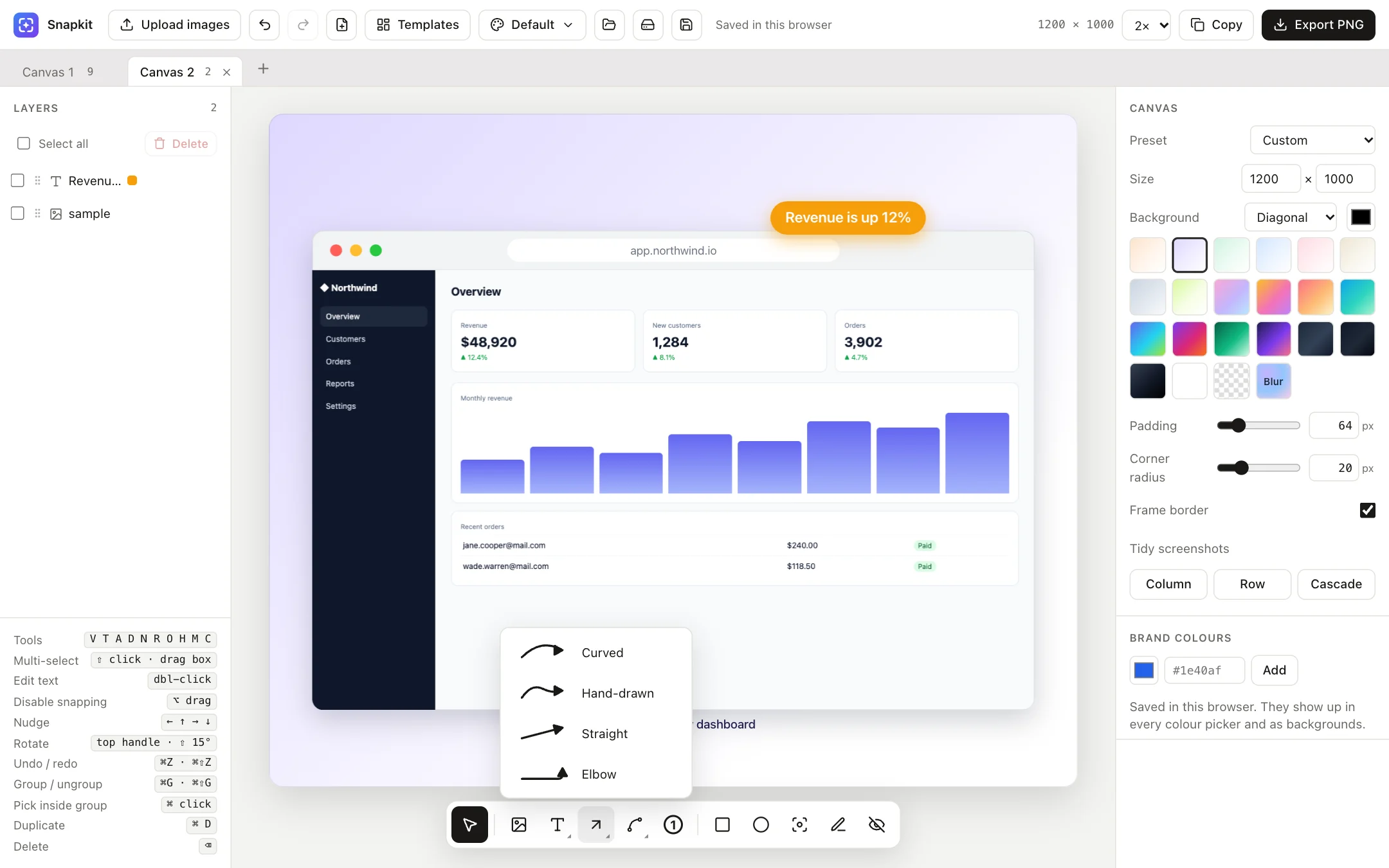
- Line style: curved, hand-drawn, straight or elbow. For elbow arrows, Vertical first changes which way the corner goes.
- Arrow head: filled, open or none, with an optional Dot at start.
- Thickness, Bend and Colour.
Doodle arrows
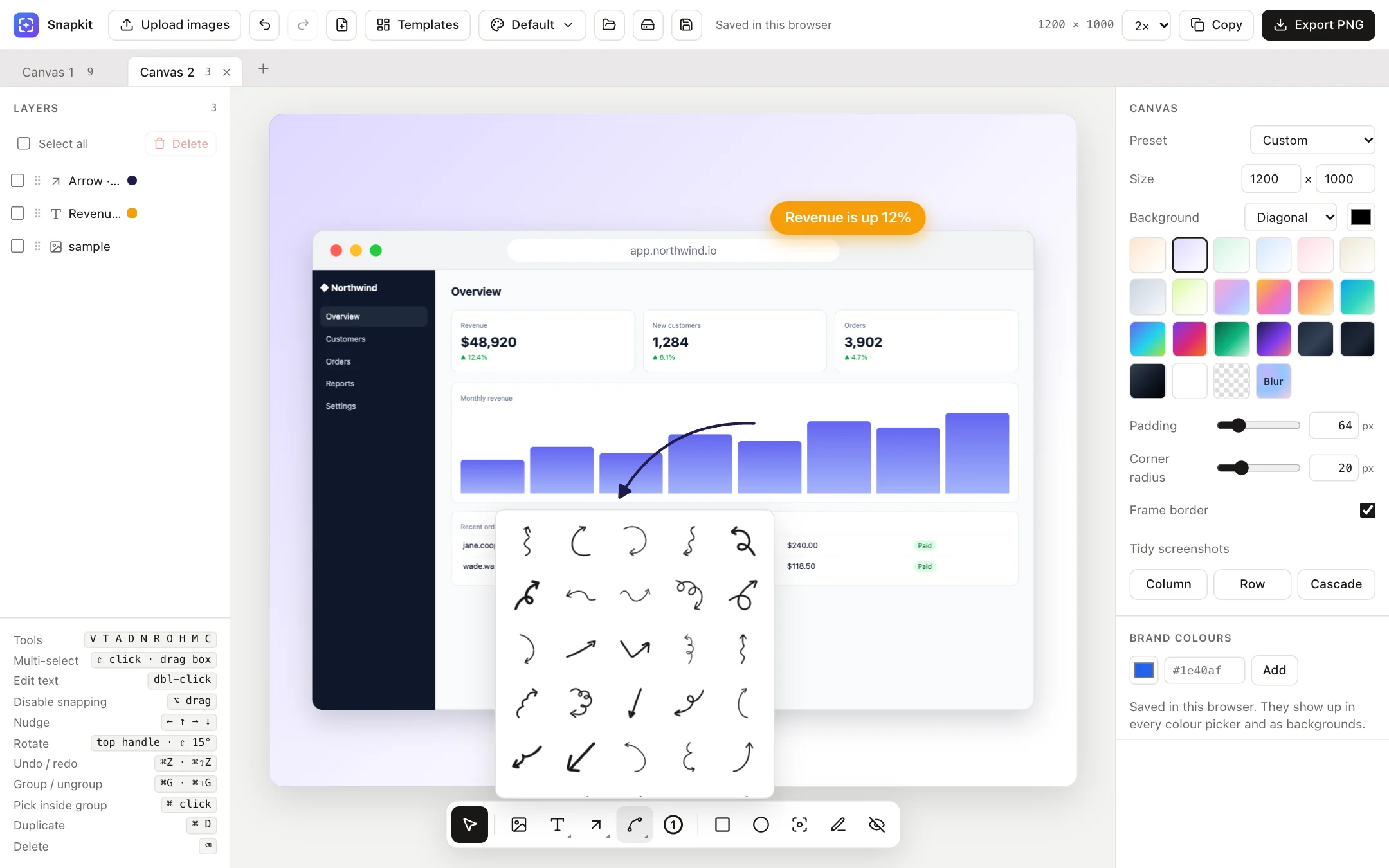
Press D for a library of hand-drawn arrows that feel more personal than straight lines. Pick one, then resize, rotate, flip and recolour it.
Number badges
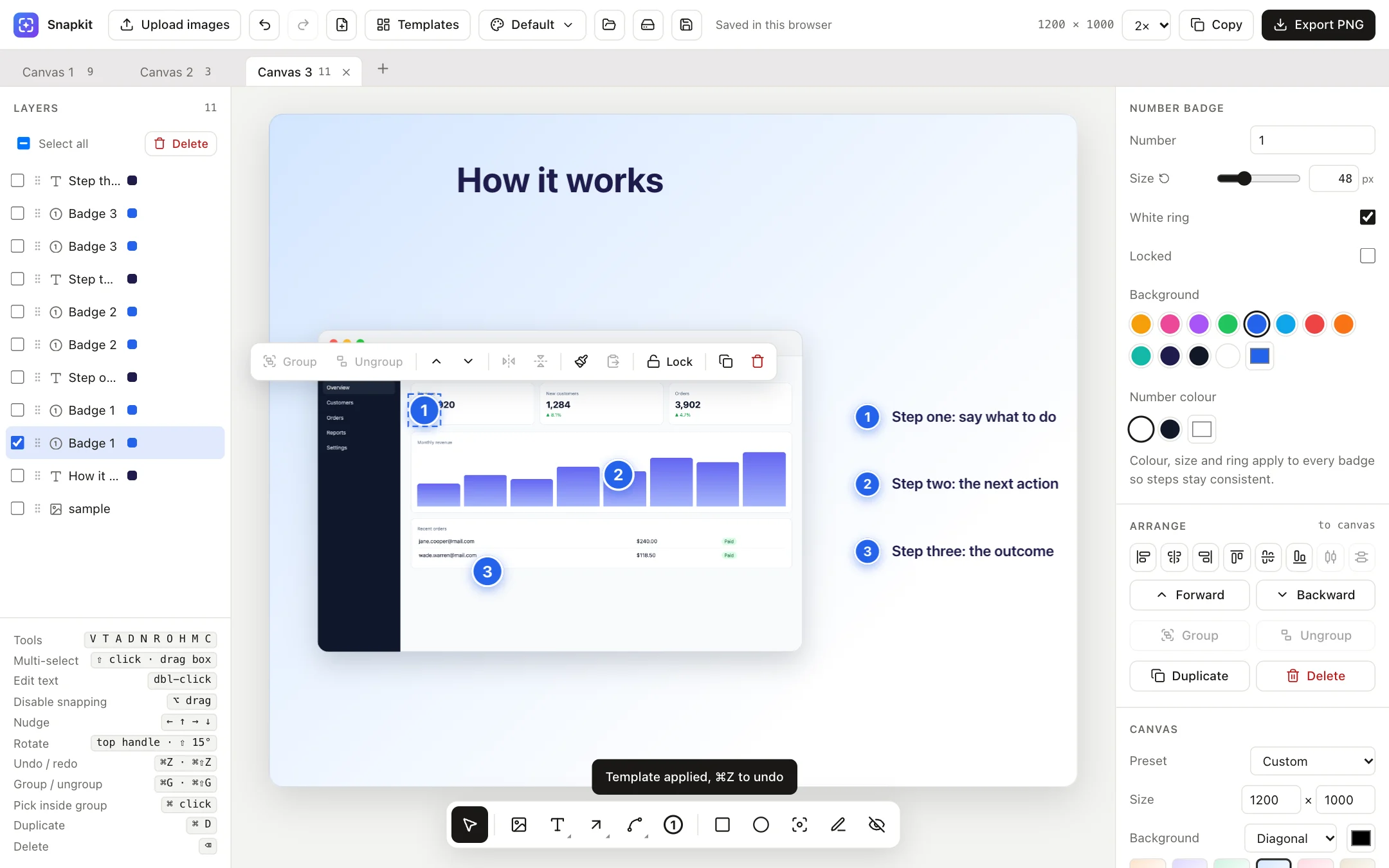
Press N and click to drop numbered markers for step-by-step guides. Each new badge counts up automatically. Colour, size and the white ring apply to every badge on the canvas, so your steps always match. Change a badge's number in the panel.
Shapes
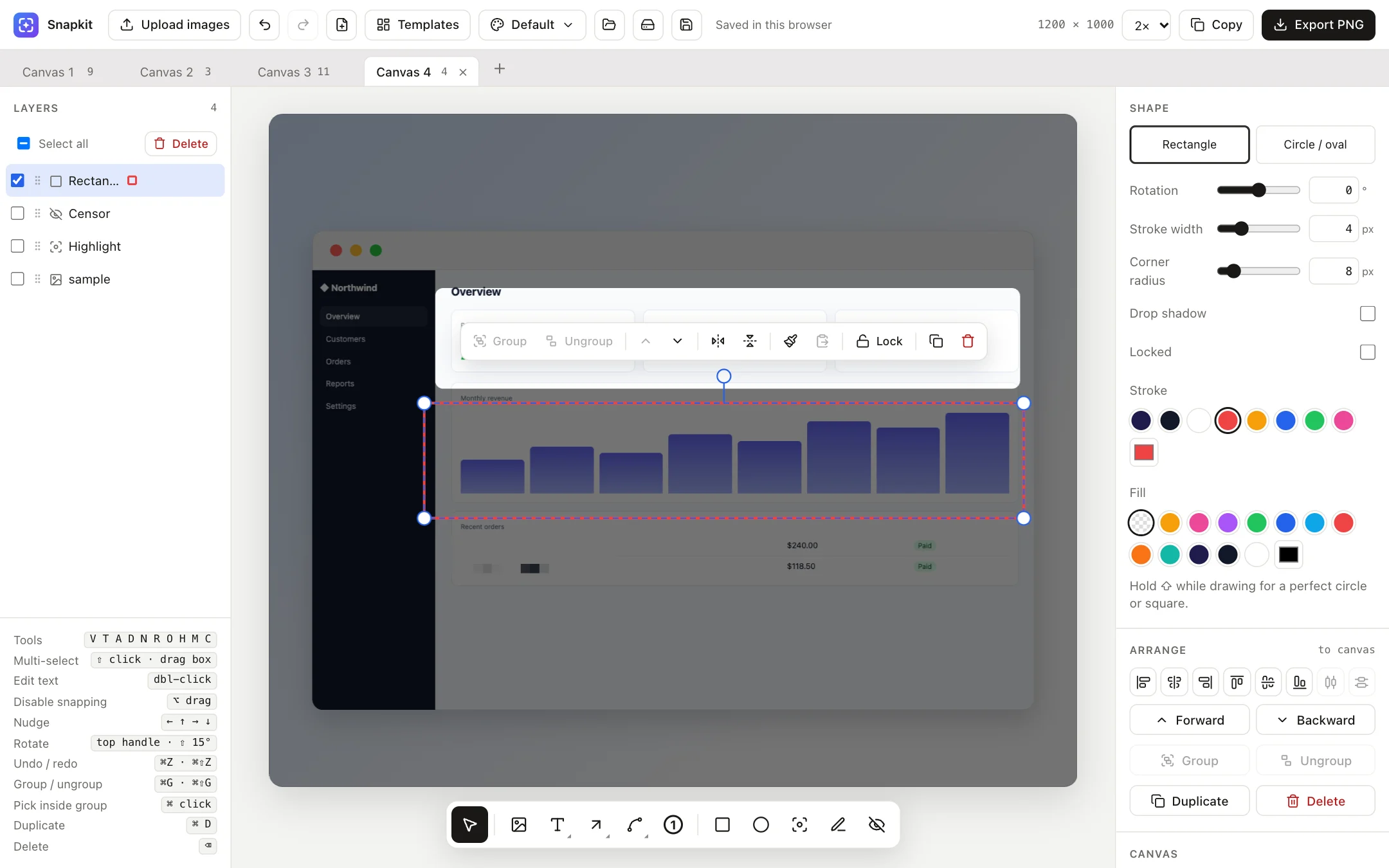
Press R for a rectangle or O for a circle or oval, then drag on the canvas. Hold ⇧ for a perfect square or circle. You can set stroke width and colour, fill (or none), corner radius, rotation and drop shadow.
Highlight
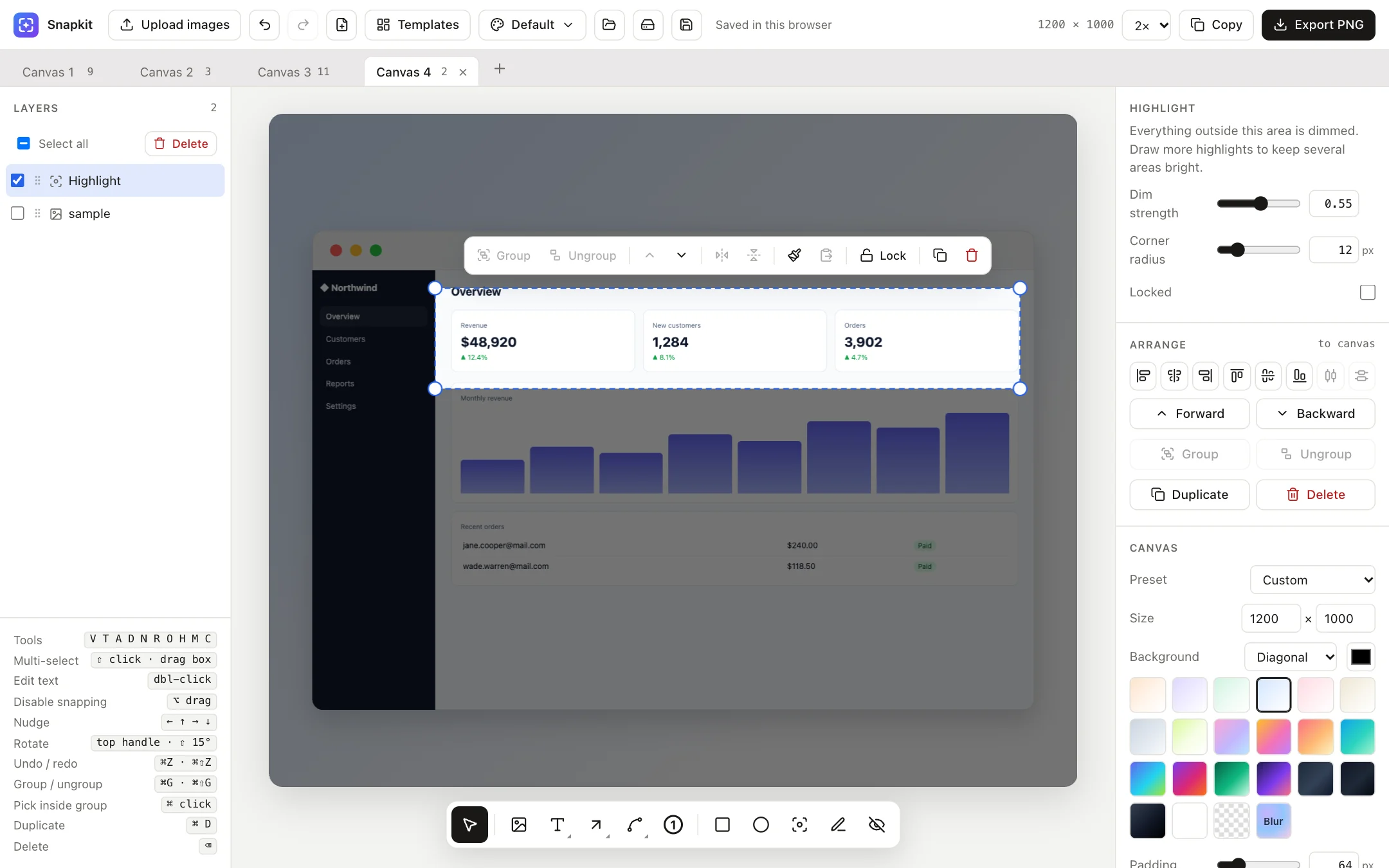
Press H and drag over the area that matters. Everything outside it is dimmed. Draw more highlights to keep several areas bright. Adjust Dim strength and Corner radius.
Marker
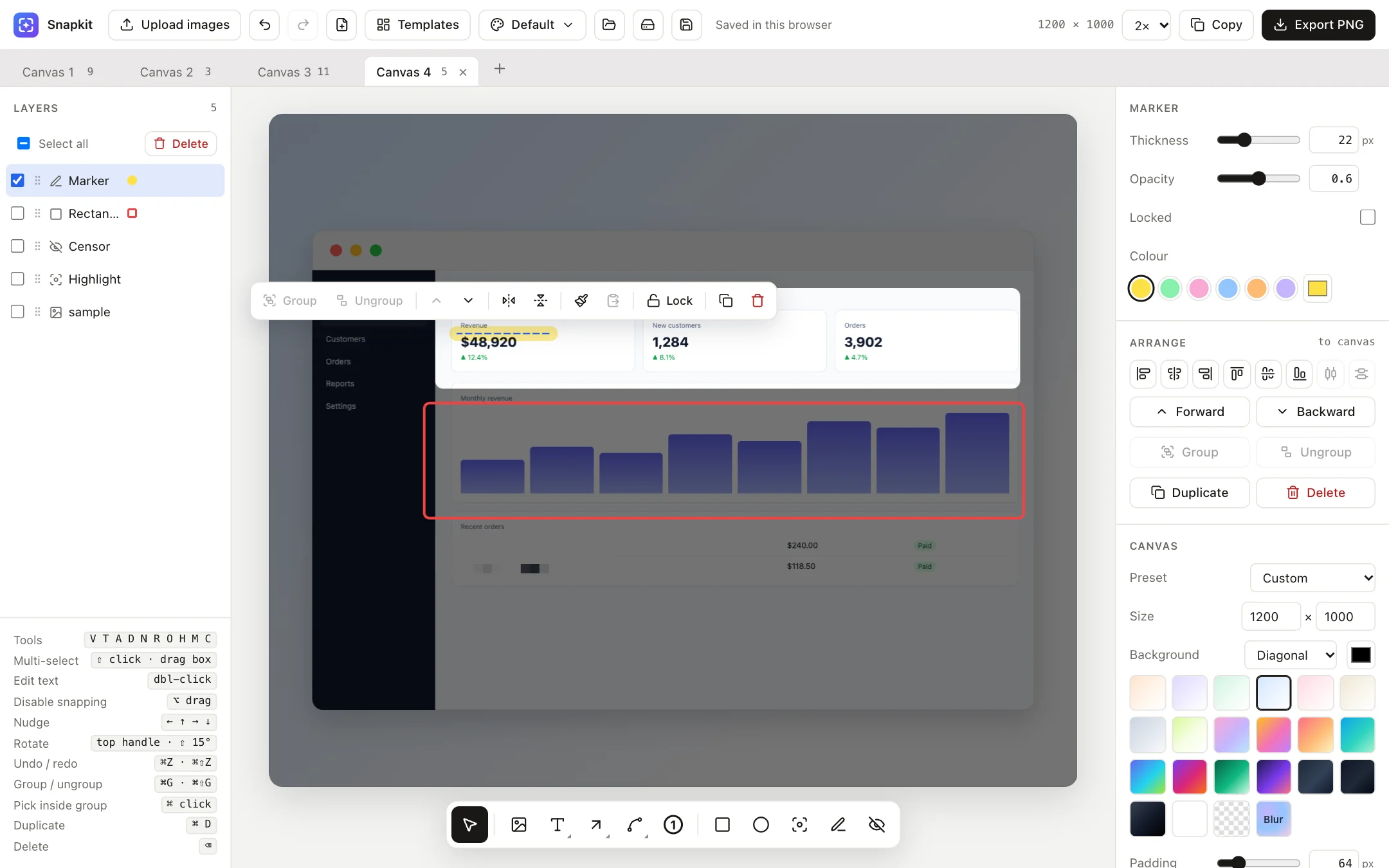
Press M and draw freehand like a highlighter pen. You can set thickness, opacity and one of six highlighter colours.
Censor
Press C and drag over emails, names, API keys or anything else private. Choose Pixelate, Blur or a Solid block, and set the strength and corner radius.
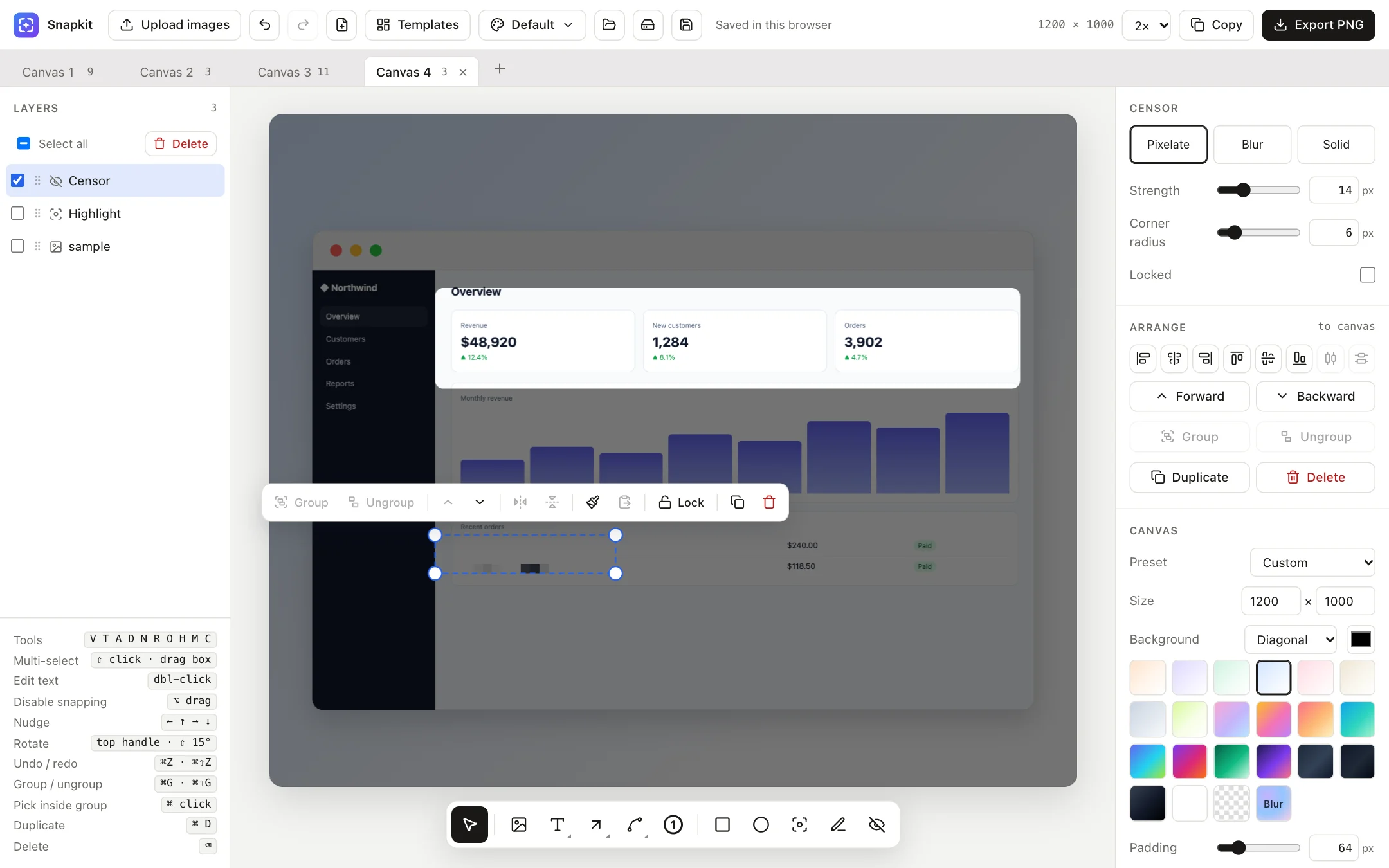
Selecting & arranging
- Click to select. ⇧-click or drag a box on an empty area to select several.
- Elements snap to each other and to the canvas centre. Hold ⌥ while dragging to turn snapping off.
- Use the arrow keys to nudge. Drag the top handle to rotate, and hold ⇧ to rotate in 15° steps.
- Arrange aligns to the canvas (one element selected) or to each other (several selected): left, centre, right, top, middle, bottom, and distribute evenly.
- Group (⌘G) makes elements move as one. ⌘-click an element to edit it inside its group.
A floating toolbar appears above any selection:
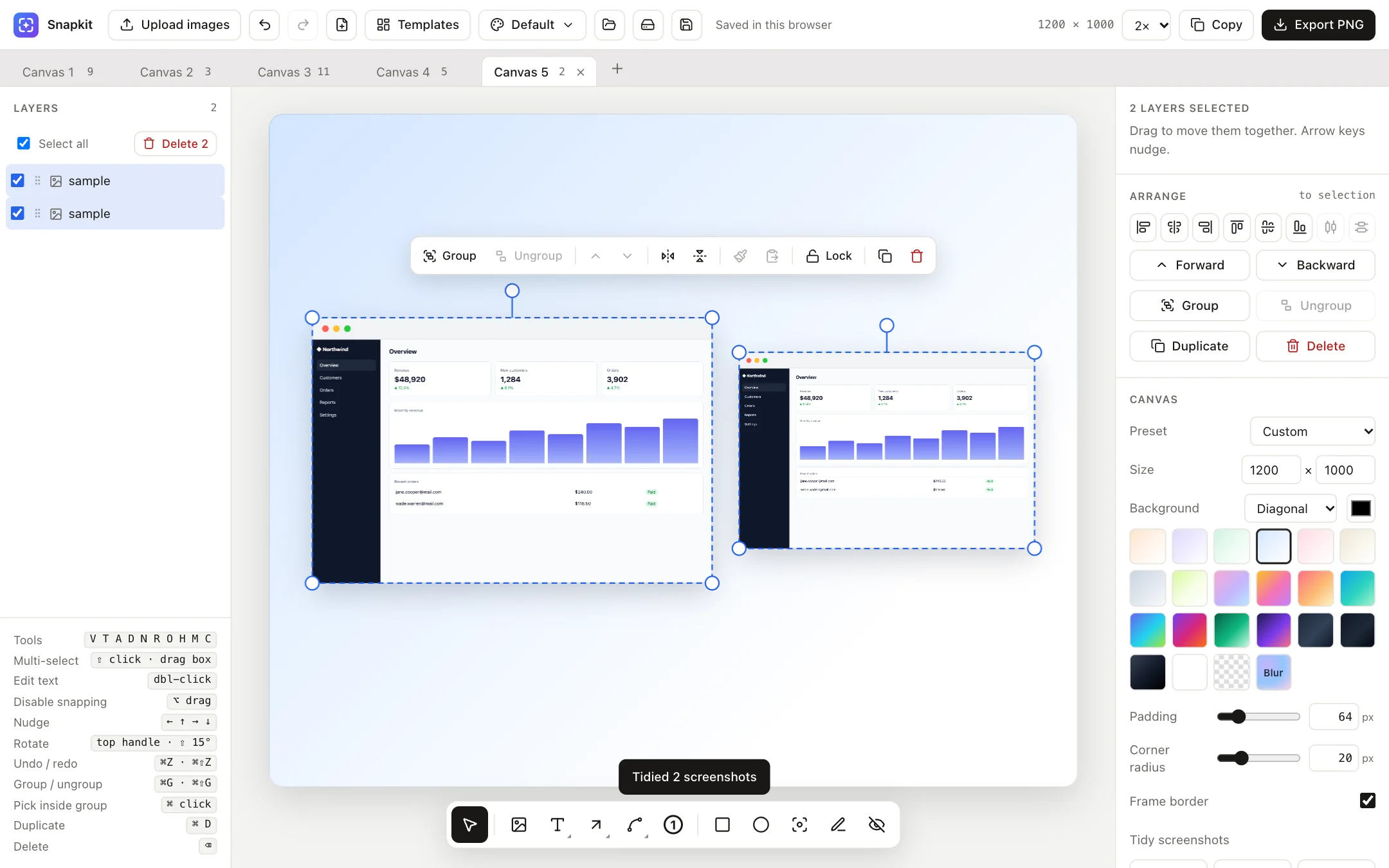
| Button | What it does |
|---|---|
| Group / Ungroup | Combine or split a selection. |
| Forward / Backward | Move the selection up or down the layer stack. |
| Flip | Mirror horizontally (⇧H) or vertically (⇧V). |
| Copy / paste style | Copy colours, sizes and fonts from one element and apply them to another (⌘⌥C / ⌘⌥V). |
| Replace | Swap a screenshot's image file. |
| Lock | Stop an element from being moved by accident. |
| Duplicate / Delete | ⌘D / ⌫. |
Layers
The left panel lists every element, top-most first.
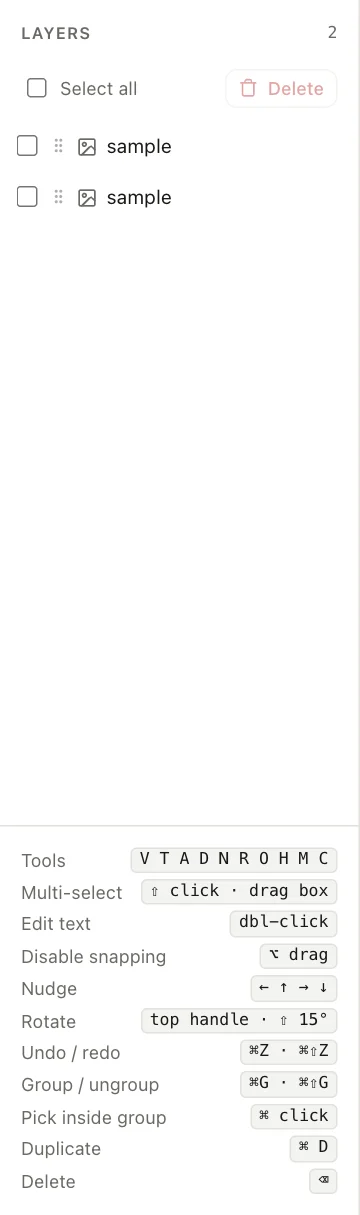
- Click a layer to select it, or drag the grip to reorder.
- Hover a layer to hide/show or lock/unlock it.
- Use the checkboxes or Select all to delete many layers at once.
Brand colours & presets
Brand colours
Add your brand's hex colours under Brand colours in the right panel. They then appear in every colour picker and as background swatches.
Brand presets
A preset saves your whole look: canvas size, background, padding, export scale, brand colours, and how every element type is styled (callout colours, fonts, arrow style, badge colour, captions and more). Set things up once, then type a name and click Save.
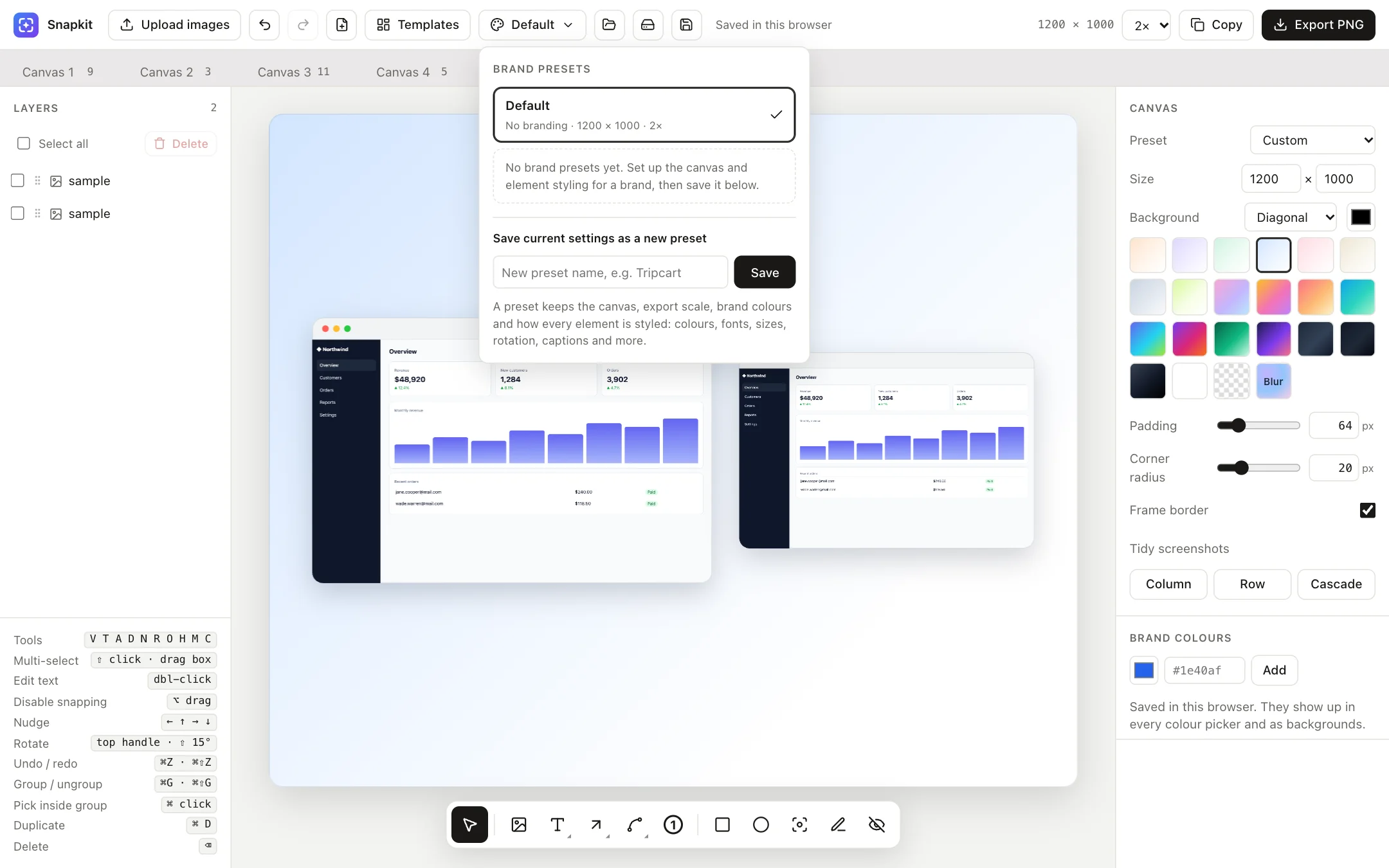
Switch presets from the top bar to restyle the current canvas straight away. After making changes, click Update preset to keep them. This is ideal for agencies or anyone making visuals for more than one product.
Canvases & saving
- Tabs: click + or the new-canvas button to start another canvas. Double-click a tab to rename it, and drag tabs to reorder them.
- Autosave: everything is saved in your browser as you work. “Saved in this browser” in the top bar confirms it.
- Project files: the save button downloads a
.jsonproject with all canvases and images. Open it later, or on another computer, with the open button. Use project files for backups and for sharing editable work. - Undo / redo: ⌘Z / ⌘⇧Z, with a separate history for each canvas.
Browser storage
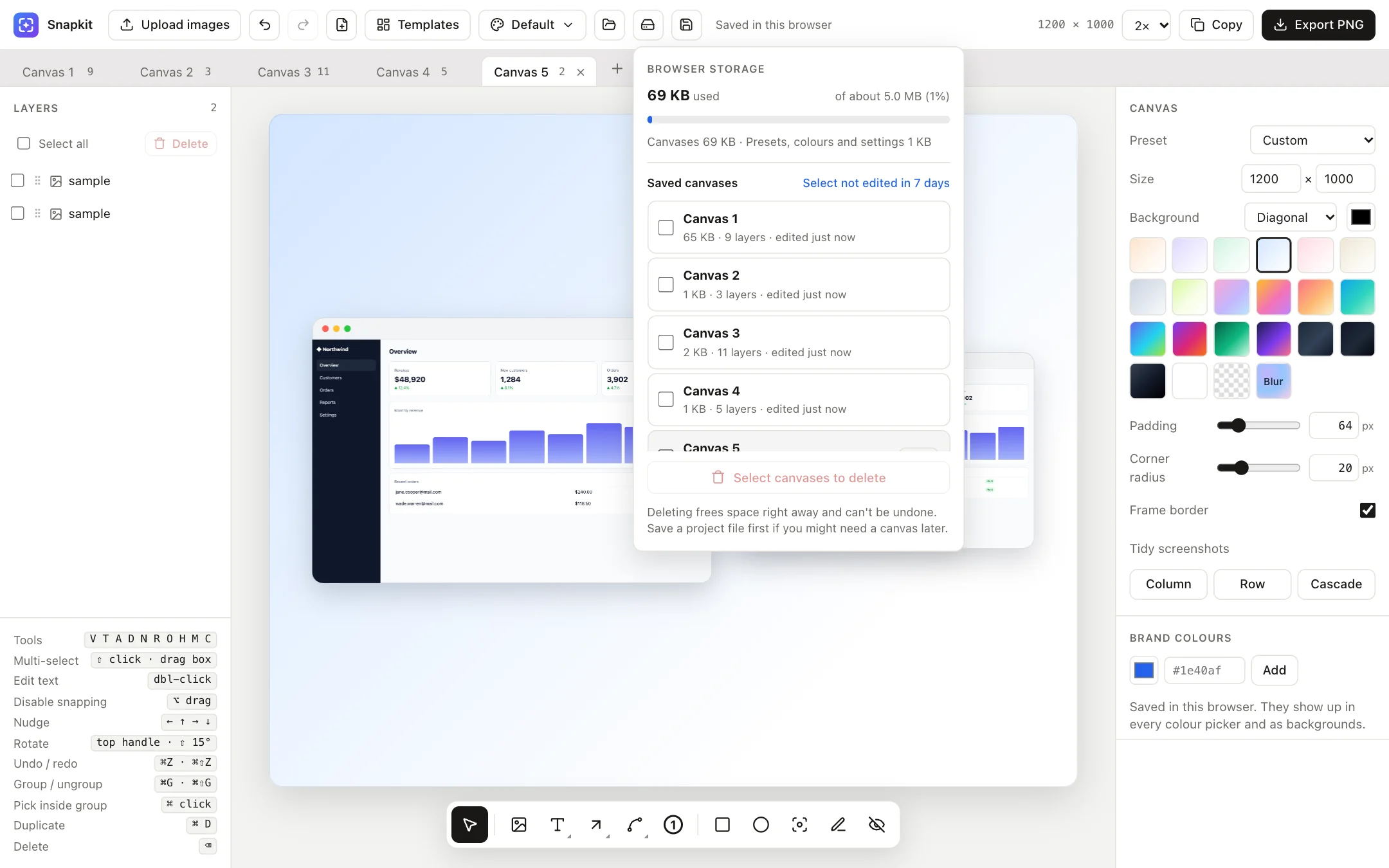
Browsers give each site about 5 MB, and screenshots fill that quickly. The storage button shows how much you're using and what each canvas takes up. Use Select not edited in 7 days to clear out old canvases.
Export & copy
- Export PNG downloads the canvas as
snapkit-WIDTHxHEIGHT.png. - Copy puts the PNG on your clipboard, ready to paste into Slack, X, Notion, Figma or an email.
- Export scale (1×, 2×, 3×) multiplies the resolution. 2× is the default and looks sharp on retina screens.
- Pick the transparent background to export a PNG with no background.
Keyboard shortcuts
On Windows and Linux, use Ctrl for ⌘ and Alt for ⌥.
| Action | Shortcut |
|---|---|
| Select tool | V |
| Text | T |
| Arrow | A |
| Doodle arrow | D |
| Number badge | N |
| Rectangle / circle | R / O |
| Highlight | H |
| Marker | M |
| Censor | C |
| Paste a screenshot | ⌘V |
| Multi-select | ⇧ click · drag a box |
| Edit text | double-click |
| Turn snapping off | hold ⌥ while dragging |
| Nudge | ← ↑ → ↓ |
| Rotate in 15° steps | hold ⇧ on the rotate handle |
| Undo / redo | ⌘Z / ⌘⇧Z |
| Group / ungroup | ⌘G / ⌘⇧G |
| Pick inside a group | ⌘ click |
| Duplicate | ⌘D |
| Delete | ⌫ |
| Flip horizontal / vertical | ⇧H / ⇧V |
| Copy / paste style | ⌘⌥C / ⌘⌥V |
| Finish cropping | Enter |
Privacy
Snapkit runs entirely in your browser. Your screenshots are never uploaded to a server: they stay on your device in browser storage, or in project files you save yourself. You don't need an account, and it works offline once the page has loaded.